Manual
First launch
The first time you run Skagway, you choose where the catalog and thumbnail cache live. Then an empty home library opens so you can add videos.
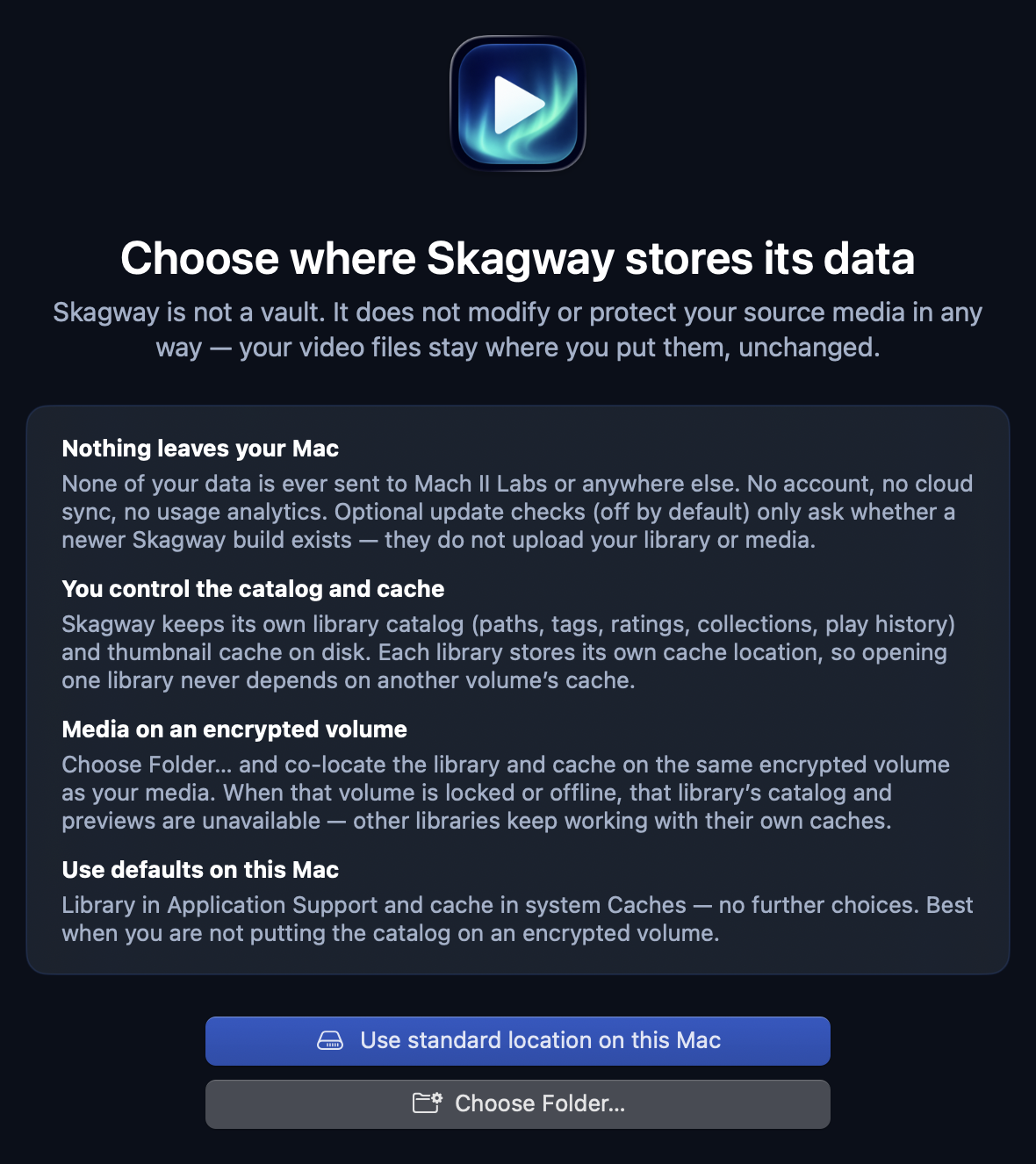
What Skagway stores
- A library is Skagway’s catalog — titles, thumbnails, ratings, tags, bookmarks, and collections. Your video files stay where they are.
- Skagway does not modify or protect source media. Put sensitive files on an encrypted volume if you need that at the disk level.
- Each library keeps its own thumbnail cache. Opening one library never depends on another volume’s cache.
Choose where Skagway stores its data
- Use standard location on this Mac — library under Application Support; cache under ~/Library/Caches/Skagway/.
- Choose Folder… — pick a folder yourself (for example on an encrypted or external volume).
- If you chose a custom folder, Skagway asks Where should this library’s cache live?
- Co-locate with library — a Skagway-cache folder next to the library.
- System default — this library’s cache under ~/Library/Caches/Skagway.
- Choose Folder… — pick any folder for this library’s thumbnails.
- Then Skagway asks How should Skagway find this library?
- Remember this location — Skagway can reopen it next time.
- Ask every time I open Skagway — you open the library file each launch.
Nothing leaves your Mac by default — no account, no cloud sync, no usage analytics. Optional update checks stay off unless you turn them on later; they only ask whether a newer Skagway build exists.
Your library opens
- After setup, Skagway relaunches briefly — that is normal.
- With Use standard location or Remember this location, Skagway opens your home library automatically (and creates an empty .machii catalog if needed).
- If you chose Ask every time I open Skagway, no library is remembered — use File → Open Library…, New Library…, or Open Recent.
Add your first videos
- An empty library shows Drag videos here — drop video files or folders onto that area.
- Or click Add Files… and select video files or folders, then Add.
- You can also choose File → Add Folder… (⇧⌘O), pick folders, and click Scan.
- Skagway indexes recognized videos and builds thumbnails in the background.
Folders you add are saved as Data Sources so Skagway can scan them later. Change their locations later from the File menu.