
15CE Flasher · Install help
Install help & troubleshooting
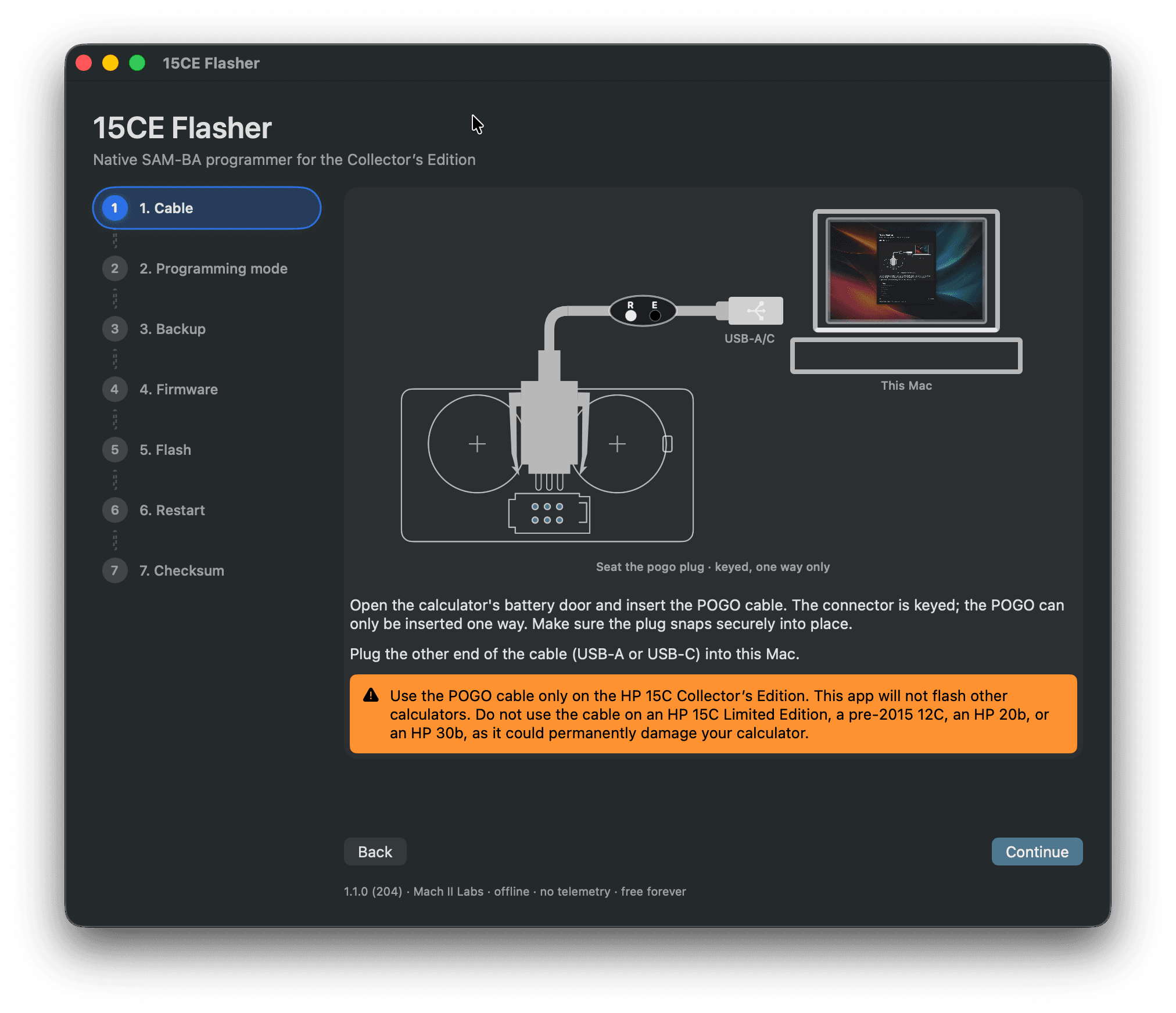
You do not need to study this page before flashing. Download 15CE Flasher, choose FLASH, and follow the in-app wizard — it shows diagrams, status messages, and Back / Next on every step.
Quick start
- Download and install the app for Mac or Windows (details below if you need them).
- Open 15CE Flasher and choose FLASH on the welcome screen.
- Follow the seven-step wizard. The app tells you what to do at each step — plug in the cable, enter programming mode, save a backup, pick your firmware file, flash, restart, and optionally confirm the checksum.
What you need
- A Mac (macOS 13+) or a PC (Windows 10/11, 64-bit)
- HP 15c Collector's Edition and the official pogo cable. You can get it at The Calculator Store or hpcalc.org.
- A 114,688-byte firmware
.binfrom HP — download here (not included with 15CE Flasher)
Cable warning.Use this cable only on the HP 15c Collector's Edition. It can permanently damage other calculators.
Install on Mac
- Download 15CEFlasher-1.3.0-217.dmg.
- Open the disk image and drag 15CE Flasher to Applications.
Verify download (SHA-256)
- In Terminal:
shasum -a 256 /path/to/15CEFlasher-1.3.0-217.dmg - Expected: 16b92b28b137fa773cd1b9f31e28e677dc99b982b835d78bf952aa90ffa39c30
Install on Windows
- Download 15CEFlasher-Win-1.1.0-110.exe.
- Run the
.exe. If SmartScreen warns about an unknown publisher, choose More info → Run anyway.
Verify download (SHA-256)
- In PowerShell:
Get-FileHash -Algorithm SHA256 "$env:USERPROFILE\Downloads\15CEFlasher-Win-1.1.0-110.exe" - Expected: 66108db0837e31e67b2a08d2eb3fd4fe235cc933730279d56fe312a2ec973dda
Optional: try before you flash
DEMO walks through the same wizard with a simulated calculator — no cable required. Mac and Windows both support it. Good if you want to see the flow before touching real hardware.
Connection Probe connects to your real calculator and confirms detection without flashing firmware. Use it if the cable step in FLASH is not connecting and you want a quick yes/no before you pick a .bin file.
If you get stuck
Expand a topic below. The in-app wizard still has the full diagrams and instructions — these notes are for when something does not match what you expected.
Calculator not connecting
On the cable switch box: hold ERASE, press RESET, then release ERASE. The calculator display stays off; the ON key is ignored in programming mode.
When the app connects, status shows Connected: ATSAM4LC2C and Next becomes available.
- Plug the cable directly into the computer — USB hubs can be unreliable.
- Try Connection Probe on the welcome screen for a connection-only test.
- Windows: after ERASE+RESET, Windows may show more than one COM port. The app uses the Atmel SAM-BA port, not FTDI.
- Mac: the programming port appears as
cu.usbmodem….

Pogo cable won't seat
The pogo head is keyed — it has a wide side and a narrow side. Line those up with the port and squeeze the sides as you push until it snaps in.
Backup and firmware file
On the Backup step, Save backup… writes a .bin of what is on the calculator now. Choose Skip backup only if you already have a known-good copy.
On the Firmware step, pick your 114,688-byte HP .bin. The app checks the file before flash unlocks.
After flashing — Pr Error and user memory
Press RESET on the cable box, turn the calculator on, and press any key to clear Pr Error — that is expected. User memory was cleared; that is normal too.
If something looks wrong, restore from the backup you saved in the app or re-flash another .bin. The bootloader below address 0x04000 was not overwritten.
Checksum test on the calculator
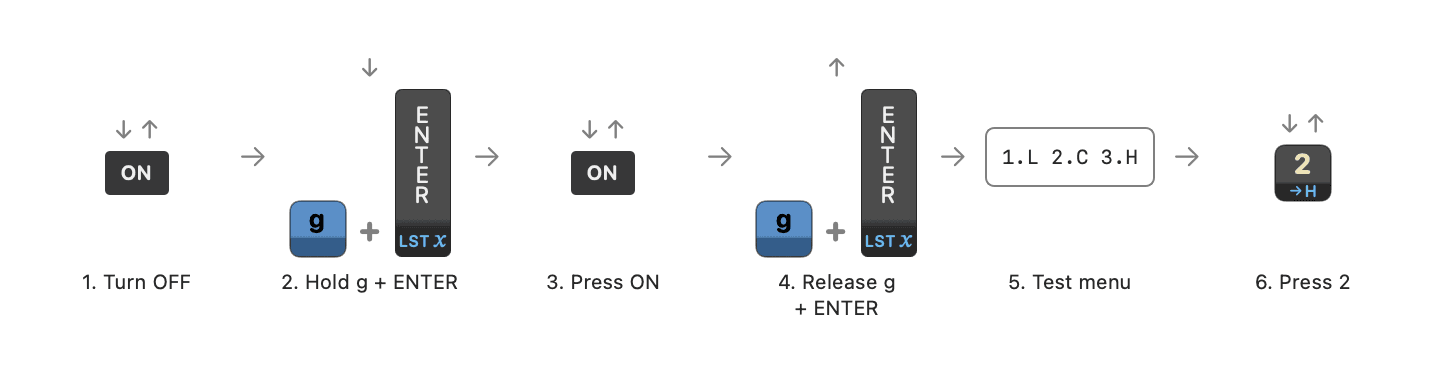
The last wizard step walks you through this. Turn the calculator OFF, hold g and ENTER, press ON, then release keys in the order the app shows. Press 2 when you see 1.L 2.C 3.H, and compare the display to the value shown in the app.
Batch mode (many calculators)
Choose BATCH on the welcome screen when you already know ERASE+RESET and want to flash several CE units with the same firmware. Pick your .bin once, set backup policy, click Start batch, then ERASE+RESET each calculator in turn. The app connects and flashes automatically.
Privacy & support
The app is offline: no telemetry, no network, no automatic diagnostics. Questions: support@machiilabs.com.
Mach II Labs is not affiliated with HP, Atmel, or Microchip. The download does not include HP firmware. Flash helper applet from Atmel SAM-BA 2.16 redistributed under the SAM Software Package License.
Flashing firmware can wipe user memory or leave the calculator unusable if instructions are not followed. You are responsible for backups and choosing a correct firmware file. If DEMO mode does not make the steps clear, do not proceed in FLASH mode.